Showing posts with label games. Show all posts

Sunday, March 25, 2018

Game Dev Tutorials

Many game devs get their start from following tutorials, because even though there has been a surge of game-related classes and programs in colleges and schools, a lot of the content taught is overarching principles of design and workflows. Hands-on how-to material is still largely dominated by online tutorials.

Tutorials are a great way to learn how to build specific mechanics within specific engines or frameworks, and can be beneficial even for seasoned developers. Often tutorials cover not only scripting, but also art asset creation, world building, animation, and effects...you can make a complete game from scratch by following a tutorial, or you can pick up bits and pieces to fill in knowledge games.

For the past year I've been working on tutorializing content that I teach in classes, workshops, and camps. This is beneficial to anyone participating in my classes because it means they can work at their own pace and continue to learn even when I am not there, and it also allows people from all around the world to experience this content because it is available online (and much of it is free).

If you are an aspiring game developer, or if you teach game dev classes or workshops, I hope you will consider checking out my suite of tutorials. Here is a rundown of what I have to offer (all tutorials use the Unity game engine):


This tutorial covers everything you need to know about using 2D sprites in Unity, either for 2D game objects  animated for 2D gameplay, or for UI elements in a 2D or 3D game. Topics covered include sprite sheets, color, sliders, and rotation/scale/position animations.


Unity has a built-in physics engine that allows you to quickly and easily animate objects using physical properties such as force, torque, friction, mass, and bounciness. In this tutorial you will learn how to use these different properties to create a wide range of movement and behavior for physics-based objects in both 3D and 2D.


In addition to rigidbody physics, Unity also supports cloth physics. This tutorial covers the basics for setting up an object to behave like cloth, including constraints, stiffness, stretchiness, and animated force for wind and gravity.


This tutorial breaks down the most common features of Unity's Particle System component, including sprite sheets, velocity over lifetime, color over lifetime, trails, emissions, and bursts.


One of the biggest distinguishing factors from a student game and a professionally developed game is the "juiciness" of the interactions. The hallmark of game design is making the game "feel good" and so much of that good feeling comes from making things feel reactive to the player's actions. This tutorial covers specifically using particles and sound effects to make the interactions juicy.


This tutorial is available on Pluralsight and covers the full pipeline for creating your first game prototype. It covers whiteboxing, importing assets, building a level, adding animations, particles, lighting, and sounds, and making it a complete experience with a UI start screen and win/lose screens.

https://www.pluralsight.com/courses/unity-vr-fundamentals

This tutorial is specifically intended for aspiring VR developers, and gives the basics of getting started with room-scale VR on the Vive, and mobile VR.

Please subscribe to our youtube channel for more tutorials, gameplay videos, and other fun things! Thanks for reading!

Friday, June 16, 2017

Death's Daughter

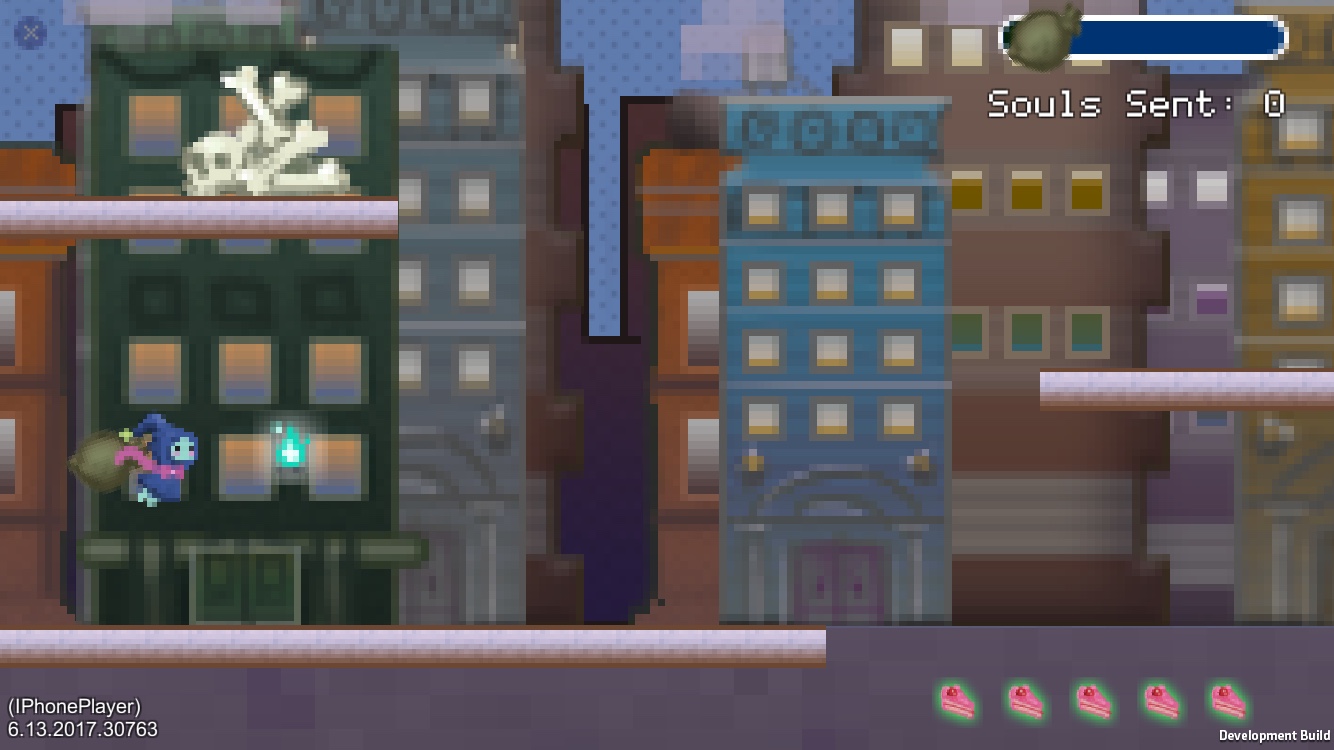
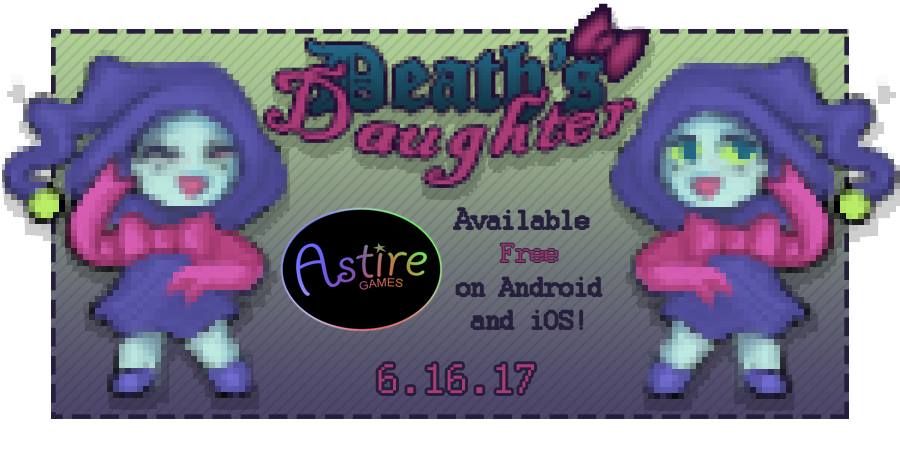
The second team of interns at Astire Games just wrapped up their project Death's Daughter. It is an endless runner on Android and iOS where you play as the daughter of the Grim Reaper helping him reap souls.


Some cute and interesting things they did with their mechanics - the character you play is very young, and the souls weigh her down both figuratively and literally. She carries the souls in a bag on her back and drops them off at courier checkpoints, but as the bag fills with souls she moves slower and it becomes more difficult to clear obstacles. If her bag has too many souls it will tear open and she will drop them all and have to start over. One of the obstacles she faces is a black cat, which gives nine souls if she hits it - this can be good or bad for the player depending on how full your bag is!


The game went live today on Google Play and iTunes, but the interns will be continuing their internship for another week to release updates to the game based on reviews and feedback from players. We hope you will play and give feedback!


Friday, June 10, 2016

Oculus Launch Pad

Last month I had the opportunity to attend an event at Facebook Headquarters called Oculus Launch Pad. This event was intended to promote diversity in the field of VR, and it met those intentions quite well. The program hosted 100 people for a day-long boot camp as a deep dive into developing games, apps, and film for virtual reality. I, along with 99 others who all came from diverse backgrounds and varying ages, genders, races, ethnicities, orientations, etc, spent a fantastic day learning about the technical side of putting a game on the GearVR, tips and tricks for designing "comfortable" VR content, how to keep a project on track and finish on time, and the importance of story and immersion in the VR world. The day concluded with a Q&A with Palmer Lucky and a networking mixer for all of the participants to get to know each other and learn about everyone's interests and projects.

On the technical side, it was great to have an opportunity to go through the process of getting an application from Unity onto the GearVR. I'm outlining the process here for anyone else who may be interested in making something for GearVR:

1. Get the latest version of Unity, and during the initial download be sure to check the box for "Android" from the list of development platforms (if you already downloaded Unity and don't have the Android package you will need to go back to the Unity downloader to get it).

2. Visit the Oculus developer website and download the Oculus SDK and Oculus Unity Utilities, and import the Oculus Unity Utilities package to your Unity project

3. Download and install the Android SDK. It will launch a download manager where you can select different versions. you can download as many versions as you like, but you will at least need API level 19. When you select download, you will need to agree to the terms and whatnot, but it is not super clear from the prompt you need to select "agree" for each of the download items in your selected list, so if you have two items selected you will need to scroll to the bottom to "agree" for the second one.

4. Create an OSIG for your device. This one is a little complicated, here are the details

  • Put your Android Galaxy device into debug mode (go to settings > device and tap the build number a bunch of times)
  • On your Android device go to Developer Settings and check the box for "USB Debugging" then plug it in to your computer
  • Open Command Prompt (or Terminal on a Mac)
  • d. Navigate to the Android SDK Tools folder (use 'cd' to change directories, 'cd ..' takes you up a directory, 'cd Directory_Name' takes you down into specified directory)
  • Use the command 'adb devices' and it will give you a list of IDs for connected devices (you will probably only have one) - if you have trouble with this step you may need to update the drivers on your computer
  • Copy your device ID, then go to developer.oculus.com/osig and enter the ID
  • Download the osig file generated by the Oculus website and copy it into the following directory inside your Unity project - Assets/pluggins/Android/assets
  •  Note that you will need a separate OSIG file for each device you want to test on; you can have as many OSIG files in the assets directory as needed

5. In Unity go to File > Build Settings. Be sure to add the scene you want to build to the list of scenes.

6. Select 'Android' from the list of platforms, then click "Player Settings" at the bottom. You can also hit "Build" right now to check if your SDK is setup properly, it will let you know if it cannot find the Android SDK (it may also prompt you to download the latest JDK which are also needed to run the Android SDK).

7. In the player settings panel which should have opened on the right side of the screen, scroll down to other settings and check the box "Enable VR", then scroll down to "Other Settings" and fill in the bundle identifier (you can use whatever company and product name you want but you need the company and product name at the top to match).

8. Sign your application - under "Publish Settings" check the box for "create new keystore" then click browse and name your keystore file, then give it a password (be sure to remember this password). Then set an alias and password for this keystore (it can be the same password or a different one).

9. Be sure your Android device is still plugged in and the screen is on, then hit "Build and Run" and the game will automatically deploy to the phone.

10. Unplug the phone from the computer. It should prompt you to put it in the GearVR, but if it does not then find your newly made build (it probably has the Unity logo right now) and run it, then when it prompts you put it in the GearVR.

I hope this is helpful to anyone trying to get started in GearVR development.  Feel free to respond with questions if you have any trouble with these steps :)